🔍 The Problem
When working with UniFi intercom Home Assistant gate control, you quickly run into a major limitation.
We had a client setup with:
- 🚗 Full gate opening for vehicles
- 🚶 Partial opening for pedestrians
- 🔔 A single UniFi G3 Intercom
The requirement was simple:
Use one intercom to control two different gate behaviours.
The problem?
UniFi Access only allows one relay action per intercom.
That means the intercom can:
- open the gate fully
- OR open it partially
…but not both depending on the situation.

👉 Want the solution? Jump straight to it: Skip to the solution
🔎 Can UniFi Do This Natively?
Before involving Home Assistant, we spent a considerable amount of time trying to solve this purely within UniFi Access.
We explored:
- different relay configurations
- intercom call routing
- user permissions and profiles
- delivery vs directory vs doorbell behaviour
After testing multiple approaches, the conclusion was clear:
UniFi Access cannot natively support different gate actions from a single intercom.
There is no way to:
- assign multiple relay outputs based on call type
- route different intercom actions to different gate behaviours

🧠 Why Home Assistant?
At that point, we shifted the problem to Home Assistant.
The thinking was simple:
If UniFi can’t make the decision, Home Assistant can.
Home Assistant gives us:
- access to UniFi events
- the ability to run logic and conditions
- full control over gate triggers
If you haven’t already set this up, we’ve covered it in detail:
- How to set up UniFi Access in Home Assistant
- How to set up UniFi Protect in Home Assistant (blog coming soon)
(We’ll reference these guides rather than repeat the setup here.)

🎯 Initial Approach: Using Home Assistant With a Dedicated User
To solve this, we created a workaround using Home Assistant.
💡 The Idea
- Create a dedicated user (e.g. your_username)
- Assign a PIN to that user
- Use Home Assistant to detect that user and trigger a side gate opening
⚠️ Hardware Note: Gate Voltage Issue
During installation, we also encountered a hardware limitation with the Gate Hub outputs.
The pedestrian gate input required a 0V trigger, but the Gate Hub provided a 12V output. This meant the signal was incompatible with the gate controller.
🔧 Solution
We resolved this by introducing a relay:
Gate Hub (12V output)
        ↓
Relay
        ↓
Clean 0V trigger to gate controller
This allowed us to safely convert the signal and maintain compatibility with the gate system.
This is worth checking early in your design, as voltage differences between access control and gate systems are common.
⚠️ The First Problem: Both Gates Open
Initially, the user was authorised in UniFi.
So the flow looked like this:
PIN entered→ UniFi grants access (full gate opens)→ Home Assistant detects user→ Side gate opens
❌ Result
Both the full gate and side gate opened.


Comparison of authorised vs unauthorised user behaviour showing double gate trigger versus access denied followed by Home Assistant controlled side gate opening.
🔧 Second Attempt: Force a Rejection
To stop the full gate opening, we removed the user’s permissions in UniFi.
Now the flow became:
PIN entered→ UniFi denies access→ Home Assistant detects user→ Side gate opens
✅ Result
- Only the side gate opened
- The automation worked
❌ But the UX was poor
“ACCESS DENIED” … then the gate opens anyway
Technically correct. Practically confusing.
🔎 Trying to Detect Intercom Call Types
We then explored whether UniFi intercom Home Assistant gate control could be improved by detecting:
- Doorbell presses
- Directory calls
- Delivery calls
🔧 Testing in Home Assistant
We listened to all events:
*
❌ Result
Only this appeared:
entity_id: image.gate_thumbnail
Just a snapshot update — no usable data.

🔎 Checking UniFi Access Events
We monitored:
event.gate_access
❌ Result
Only:
- access_granted
- access_denied
No indication of:
- call type
- user being called
- intercom behaviour
🔎 Intercom Viewer Testing
We also tested whether we could detect:
- when an Intercom Viewer was called
❌ Result
No usable signals in Home Assistant.
🧠 The Key Realisation
At this point, it was clear:
UniFi Access does not expose enough intercom data for Home Assistant to use.
So instead of trying to extract hidden data…
We created our own trigger.

🔔 The Solution: Using a UniFi Chime
UniFi Access allows you to define call receivers, including:
- phones
- intercom viewers
- UniFi Protect chimes
💡 The Idea
- Assign the chime ONLY to delivery calls
- Do not use it for standard doorbell presses
Now we have:
Delivery call → Chime rings Doorbell press → No chime
This gives us a clean, reliable signal.

🔗 Final UniFi Intercom Home Assistant Gate Control Setup
Delivery call (Intercom) ↓Chime rings (UniFi Protect) ↓Home Assistant detects chime ↓Side gate opens
🔧 Step-by-Step Implementation
1️⃣ Install UniFi Protect
- Add Protect to your system
- Adopt the chime device
2️⃣ Add UniFi Protect to Home Assistant
This exposes:
sensor.front_room_chime_last_ring
3️⃣ Confirm the Trigger
When the chime rings:
state: "2026-04-19T08:43:15+00:00"
4️⃣ Create the Automation
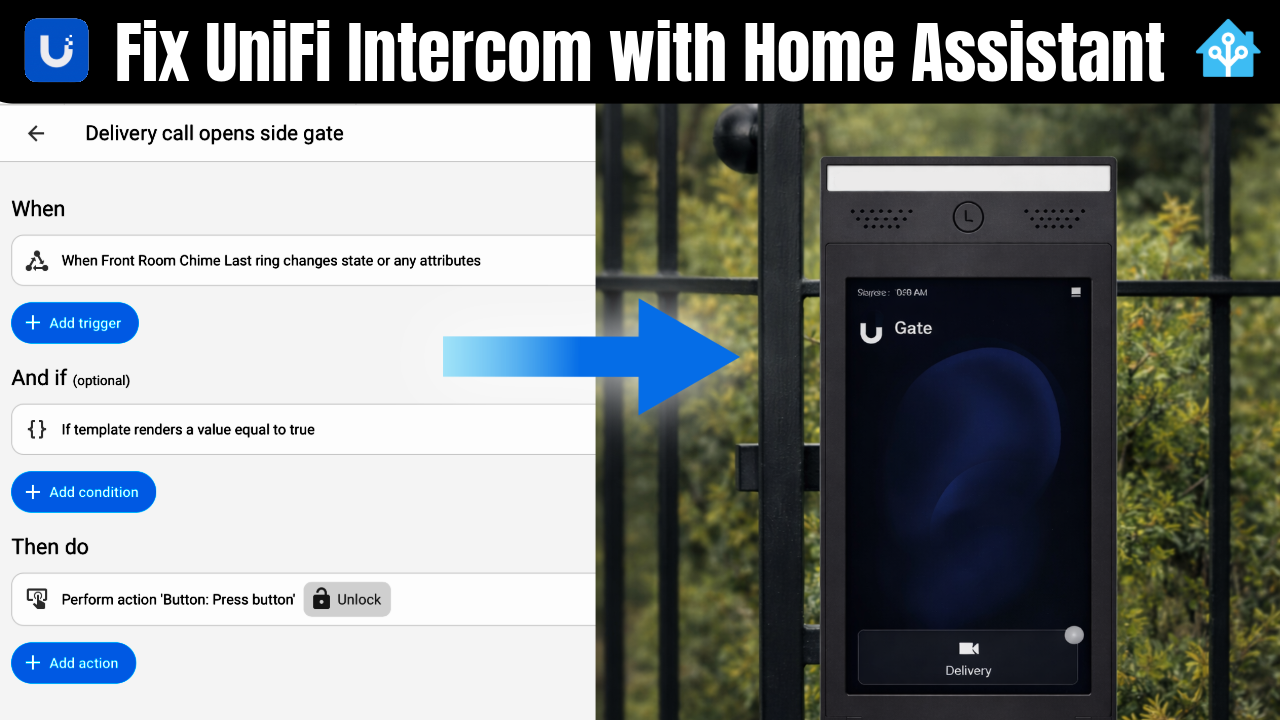
alias: Delivery call opens side gatemode: singletriggers: - trigger: state entity_id: sensor.front_room_chime_last_ringconditions: - condition: template value_template: > {{ this.attributes.last_triggered is none or (as_timestamp(now()) - as_timestamp(this.attributes.last_triggered)) > 5 }}actions: - target: entity_id: button.side_door_unlock action: button.press
✅ Result
- 🚶 Delivery call → Side gate opens
- 🚗 Normal intercom → Full gate opens
- ❌ No rejection message
- ✅ Clean user experience

🧠 Key Takeaway
When working with UniFi intercom Home Assistant gate control:
If the system doesn’t expose the data you need, create your own signal.


Chime activity detected in Home Assistant triggers automation, resulting in the side gate unlocking via UniFi Access at the same time.
👍 Final Result
We started with:
One intercom, one relay, no flexibility
We ended with:
One intercom, multiple behaviours, clean automation
That’s the difference between forcing a system… and designing around it.
👍 Conclusion
This project started with what looked like a simple requirement:
One intercom. Two different gate behaviours.
In reality, it exposed a clear limitation in UniFi Access. While the platform is excellent for access control, it doesn’t currently provide the flexibility needed to route different intercom actions to different outputs.
After exploring multiple approaches — from user-based logic to event detection and intercom behaviour — we ultimately arrived at a solution that works reliably by introducing a separate, observable trigger using a UniFi Protect chime.
🧠 What We Learned
- UniFi Access has fixed intercom behaviour with limited routing options
- Home Assistant can extend functionality, but only if it has a usable signal
- When integrations don’t expose enough data, the best approach is often tocreate your own trigger rather than try to decode the system
⚠️ A Note on Using Home Assistant
For some installations, introducing Home Assistant into an access control system can raise concerns:
- additional complexity
- reliance on third-party integrations
- long-term support considerations
That’s completely valid.
However, in our testing, this solution has proven to be:
- ✅ Stable
- ✅ Responsive
- ✅ Predictable
That said, for our real-world deployment we have made it clear:
Third-party integrations are not guaranteed and should always be considered with appropriate caveats.
🔄 What Happens Next?
We’ll be deploying this solution in a live environment and monitoring how it performs over time.
Check back for updates — we’ll share how this setup performs in a real-world installation.
💬 Your Thoughts?
Have you tried something similar with UniFi Access or Home Assistant?
- Found a different way to solve this problem?
- Managed to extract more data from the intercom?
- Taken a completely different approach?
We’d be really interested to hear how others are tackling this.
Drop a comment or get in touch 👇
❓ FAQs: UniFi Intercom Home Assistant Gate Control
1. Is UniFi Access and UniFi Protect fully supported in Home Assistant?
Yes — but with an important distinction.
- UniFi Protect is a mature and well-tested integration in Home Assistant. It exposes a wide range of entities and works reliably.
- UniFi Access is newer and currently sits at a lower maturity level (often referred to as Silver support).
In practical terms:
- Protect gives you rich, usable data
- Access provides more limited event exposure
This is exactly why, in this UniFi intercom Home Assistant gate control setup, we used Protect (via the chime) as the trigger rather than relying solely on Access.
2. How long does it take to set this up?
The setup itself is actually very simple.
The majority of time in this project was spent figuring out the logic, not configuring the system.
Typical timeframes:
- ⏱️ ~1 hour if you are familiar with Home Assistant
- ⏱️ ~3 hours if you are new to Home Assistant
That includes:
- adding UniFi integrations
- configuring the chime
- creating and testing the automation
3. Why can’t UniFi Access do this natively?
UniFi Access currently allows:
- one intercom → one relay action
It does not support:
- multiple relay outputs based on call type
- conditional logic for intercom actions
So while the hardware is capable, the software does not expose enough flexibility for advanced gate control automation.
4. Why use a UniFi Protect chime instead of UniFi Access events?
Because UniFi Access does not expose enough usable data in Home Assistant.
When testing UniFi intercom events in Home Assistant, we found:
- no distinction between doorbell, delivery, or directory calls
- no visibility of called users or devices
The chime provides a clear, reliable signal:
If the chime rings, we know exactly what happened.
That makes it ideal for triggering automation.
5. Does this solution rely on cloud services?
No — this setup runs locally.
- UniFi Access and Protect run on local UniFi hardware
- Home Assistant runs locally
- Automations execute locally
This ensures:
- low latency
- high reliability
- no dependency on internet connectivity
6. Is this reliable enough for real-world deployment?
In testing, yes.
We found the system to be:
- stable
- fast to respond
- consistent in behaviour
However, as with any third-party integration, there are caveats:
Updates to UniFi or Home Assistant could affect behaviour in the future.
For this reason, we will:
- inform clients of the dependency
- design systems with fallback options where possible
6. Can this be expanded further?
Yes.
Once you have UniFi intercom Home Assistant gate control working, you can extend it with:
- notifications to phones when the intercom is used
- camera snapshots from UniFi Protect
- time-based access rules
- logging and audit trails
- integration with other smart home systems
7. Do I need coding experience to do this?
No advanced coding is required.
You should be comfortable with:
- basic Home Assistant automations
- editing YAML (or using the UI editor)
The logic is simple once the trigger is identified.
8. What hardware do I need?
Minimum:
- UniFi Access (Gate Hub + Intercom)
- UniFi Protect (for the chime)
- A UniFi Protect chime
- Home Assistant
Optional but recommended:
- UniFi NVR / Dream Machine for Protect
- Backup access method (keypad, fob, etc.)
9. Is this the only way to achieve this?
With current UniFi limitations, this is the cleanest method we have found.
Other approaches either:
- rely on access denial (poor UX)
- trigger both gates (incorrect behaviour)
- or lack reliable signals
If UniFi expands its intercom event handling in the future, there may be simpler options.
10. Can I use this approach for other access control scenarios?
Yes.
This pattern — creating a separate observable trigger — can be applied to:
- door entry systems
- multi-zone access control
- smart building automation
It’s especially useful when a platform doesn’t expose enough internal logic.
Author: Huw Jones – Home Network Solutions Berkshire
Huw is a UniFi specialist and the owner of Home Network Solutions Berkshire, providing professional networking, CCTV, gate automation and smart home installations across the UK. With years of hands-on experience and a growing YouTube audience at @home.network.solutions, Huw creates practical, no-nonsense guides to help homeowners and installers get the best out of their UniFi systems.
Leave a Reply