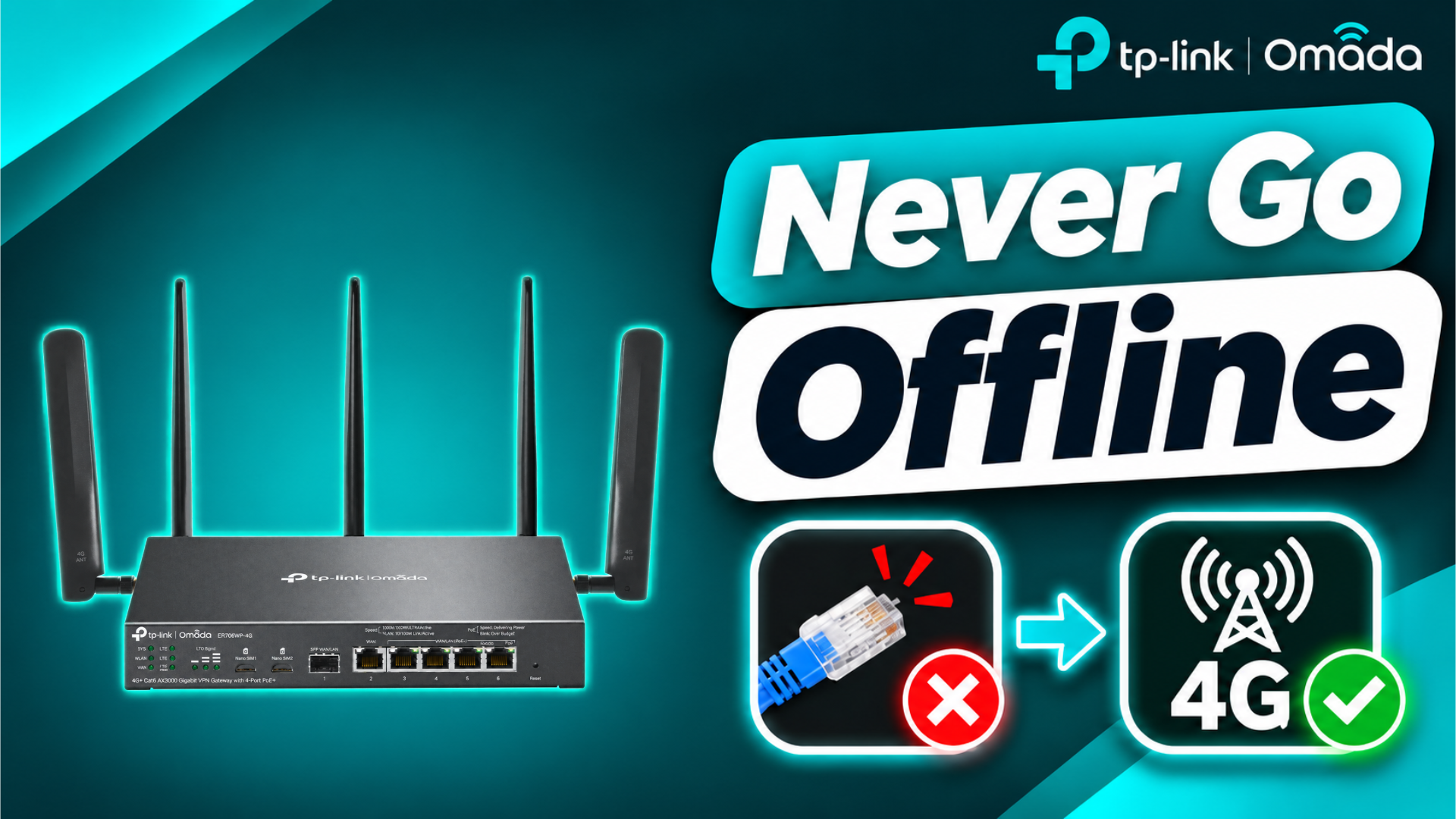
For a lot of small businesses, losing the internet means losing the ability to take payments. Card machines stop working, booking systems go offline, and customers walk out.
The TP-Link Omada ER706WP-4G is built to stop that happening. It’s an all-in-one router that can take up to six internet connections, including 4G with two SIM slots, plus built-in Wi-Fi 6 and PoE+ ports, all for around £300 (UK) / $349.99 (US).
Buy the TP-Link Omada ER706WP-4G HERE on Amazon(affiliate link)
In this review, I’ll go through the hardware, setup in Omada Cloud, the internet and VPN options, a live failover test, and the limitations you should know about.
Watch the video:
Disclosure: TP-Link sent me the ER706WP-4G to review. They had no input into this review, and as always, the opinions are my own.
Who is it for?
This router is aimed at small businesses where the internet has to stay up, but which don’t need huge speeds:
- Cafés, bars and restaurants
- Salons and retail units
- Garages and workshops
- Small offices and site cabins
If you’re running a busy office with lots of users and heavy data, this isn’t the router for you, but that’s not what it’s designed for.
The ports explained
There are six ports on the front:
- 4 × WAN/LAN ports, which also provide PoE+
- 1 × SFP WAN/LAN port
- 1 × WAN port
WAN (Wide Area Network) is where your internet comes in. LAN (Local Area Network) is for devices inside your building. The ports labelled WAN/LAN can be set to either, so you choose how many to use for internet and how many for devices.
Most businesses will use one or two wired internet connections, for example their normal broadband plus a second line or Starlink. Just remember that every port you use for internet is one fewer for your devices.

The SFP port
The SFP port needs a small module before you can use it. For a normal network cable, you’ll need a 1GbE RJ45 SFP module. SFP is also used for fibre, so with the right fibre module, you can use it for a fibre internet connection, such as a leased line, or a fibre link to another part of your site.

Buy a suitable SFP module HERE on Amazon (affliate link)
4G backup with two SIM slots
As well as the wired connections, the router has two nano SIM slots for 4G. Most businesses will use 4G as a backup, but it can also be the main connection somewhere without broadband.
The two SIMs share a single 4G connection and back each other up. If one mobile network goes down, the other takes over. For that reason, I’d always use two different networks, for example EE and Three.
That gives you up to six internet connections in total: five wired, plus 4G.
4G signal and external antennas
4G depends heavily on signal strength. Before installing, check the signal inside the building with a phone on the same network. Once the router’s running, the signal bars on the front show you the 4G strength at a glance.
The router comes with screw-on 4G antennas, which work well where the signal is good. If it’s weak, perhaps because the router is deep inside the building, the antenna connectors are standard, so you can fit an external 4G antenna mounted outside, which can make a big difference.

Wi-Fi 6
The router has built-in Wi-Fi 6 (AX3000), with three adjustable Wi-Fi antennas. As a rough guide, expect around 600–900 Mbps in real-world use close to the router, depending on your internet speed, your device and the distance.
A couple of placement tips:
- Don’t put it in a metal cabinet, because the metal blocks the Wi-Fi. Put it on top of the cabinet, on a desk, or on the wall using the mounting holes.
- Place it near your devices, with as few walls in the way as possible.
PoE+ and extending the Wi-Fi
The four WAN/LAN ports provide PoE+ (Power over Ethernet), so a single cable carries both data and power to devices like CCTV cameras, VoIP phones and wireless access points. There’s a 45W total power budget shared between the ports.
If your premises are bigger than the router’s Wi-Fi can cover, you have two options:
- Wired access point: run a Cat5e or Cat6 cable from the router to where you need Wi-Fi, and connect an Omada access point. PoE powers it over the same cable. This is the best option.
- Omada Mesh: if a cable isn’t practical, a mesh-compatible Omada access point can extend the Wi-Fi wirelessly. It needs a power supply, and not every Omada AP supports mesh, so check the specs before buying.

Buy the EAP723 HERE on Amazon (affliate link)
Physical setup
Setup is straightforward:
- Screw in the antennas. They’re labelled, so match 4G to 4G and Wi-Fi to Wi-Fi.
- Insert your SIM card with the power off.
- Plug in your main internet connection.
- Power it on and give it a minute or two to boot.
The setup catch
To be honest, the initial setup is more convoluted than it needs to be. Using Omada Cloud needs an internet connection, but out of the box the router won’t give your laptop internet until it’s set up. So you’ll need to get online another way while you set it up, for example by tethering your laptop to your phone.
The router itself also needs to be online to be added to the cloud. With a normal dynamic connection (most broadband and Starlink), it connects automatically. If your connection needs a static IP or PPPoE details, you’ll need to get the router online first, using a working SIM, temporarily plugging it into your existing router, or setting it up in standalone mode. TP-Link has a guide for this: [link].
Setting up in Omada Cloud
You can manage the router on its own (standalone), but I recommend Omada Cloud. It’s free for basic networking, and it lets you, or your IT support, monitor and manage the network remotely without a site visit.
- Go to Omada Cloud (Omada Cloud Link) and create or log in to your TP-Link account.
- Select Add New System → Cloud-Based, then choose the free option.
- Create an organisation, your company, which groups all your sites together.
- Choose Omada Network. Add Omada Guard too if you plan to use TP-Link CCTV.
- Add New Site, give it a name, choose your scenario, and set a device username and password. Make a note of these.
- Open the site, go to Devices → Add Devices, and enter the device key from the label under the router.
- If the router hasn’t been set up in standalone mode, enter the default login, admin / admin, and click Apply.
The router should adopt within a minute or so. If it doesn’t, the most common reasons are:
- The router isn’t connected to the internet.
- It’s already been set up in standalone mode, and the username and password don’t match.

Wi-Fi and firmware
- Go to Network Config → WLAN, give your Wi-Fi a name and password, and click Apply. Once it appears, connect your laptop and stop tethering.
- Then update the firmware. There may be more than one update, so start it and go and make a cup of tea.
Internet, load balancing and failover
Under Network Config → Internet, you can enable up to six internet connections and choose how they work:
- Load balancing: shares traffic across connections, with weights you can adjust.
- Failover: uses a main connection, with backups that take over if it drops. For example, broadband as primary and 4G as backup.
New WAN connections need to be assigned to a port, and changing the internet setup requires a reboot, so do it at a quiet time.

The failover test
To see it in action, I played a YouTube video on my phone and pulled out the main internet cable. The video kept playing. The router switched to 4G without interruption.
I repeated the test during a speed test. The download finished on the main connection, then the upload continued over 4G. The speed dropped to 4G levels, but the connection never dropped out.
For a business taking card payments, that’s exactly what you want.

VPN
The router also has solid VPN options:
- VPN server (WireGuard and others): lets staff or your IT support connect to the network securely from anywhere.
- VPN client: connects the router directly to a VPN service.
- Site-to-site VPN: links two locations, for example a shop and a head office.
Limitations
- 4G, not 5G: in my testing, speeds were good even with a modest signal, but 5G is significantly faster. That’s fine for payments and everyday use, but limiting for heavy data use.
- Wi-Fi 6 and gigabit ports: no Wi-Fi 7 or 2.5GbE. I’m being a bit of a networking snob here, as both are still plenty fast for this type of business.
- Single point of failure: you might have six internet connections, but if the router itself fails, everything goes down. If your internet is critical, keep a spare set up and ready on the shelf.
- Initial setup: more convoluted than it should be, especially with a static IP or PPPoE.
Verdict
TP-Link Omada kit is generally very reliable, and the ER706WP-4G offers a lot of internet resilience in one box. For cafés, bars, restaurants, salons, garages and shops, anywhere that needs a dependable connection to take card payments, it’s an excellent choice, and at around £300 it’s hard to argue with the value.
If you’re running a large office with lots of users and heavy traffic, look elsewhere. But for the job it’s designed for, it’s great.
Frequently asked questions
How many internet connections can the ER706WP-4G use?
Up to six: five wired connections through the WAN, WAN/LAN and SFP ports, plus one 4G connection.
Do the two SIM slots give two separate 4G connections?
No. The two SIMs share one 4G connection and back each other up. If one network goes down, the other takes over, so use different networks in each slot.
Can I use 4G as my main internet connection?
Yes. 4G is usually used as a backup, but it can be your main connection where broadband isn’t available, as long as the signal is good.
What can the PoE+ ports power?
Devices like access points, CCTV cameras and VoIP phones, within a 45W total power budget shared across the ports.
Does it work with Starlink?
Yes. Starlink can be used as one of the wired internet connections.
Do I need a subscription for Omada Cloud?
No. Omada Cloud is free for basic networking features, which covers most small businesses using this router. Paid licences add extra features.
Can I extend the Wi-Fi without running cables?
Yes, using Omada Mesh with a compatible Omada access point. A wired access point will always perform better, though.
Can I set it up with a static IP or PPPoE?
Yes, but you’ll need to get the router online first: use a working SIM, connect it temporarily to another router, or set it up in standalone mode. TP-Link’s guide covers the details.
Need a resilient network for your business?
At Home Network Solutions, we install and remotely manage business networks across Berkshire and the surrounding area, so your network is monitored and looked after without you having to think about it.
Leave a Reply