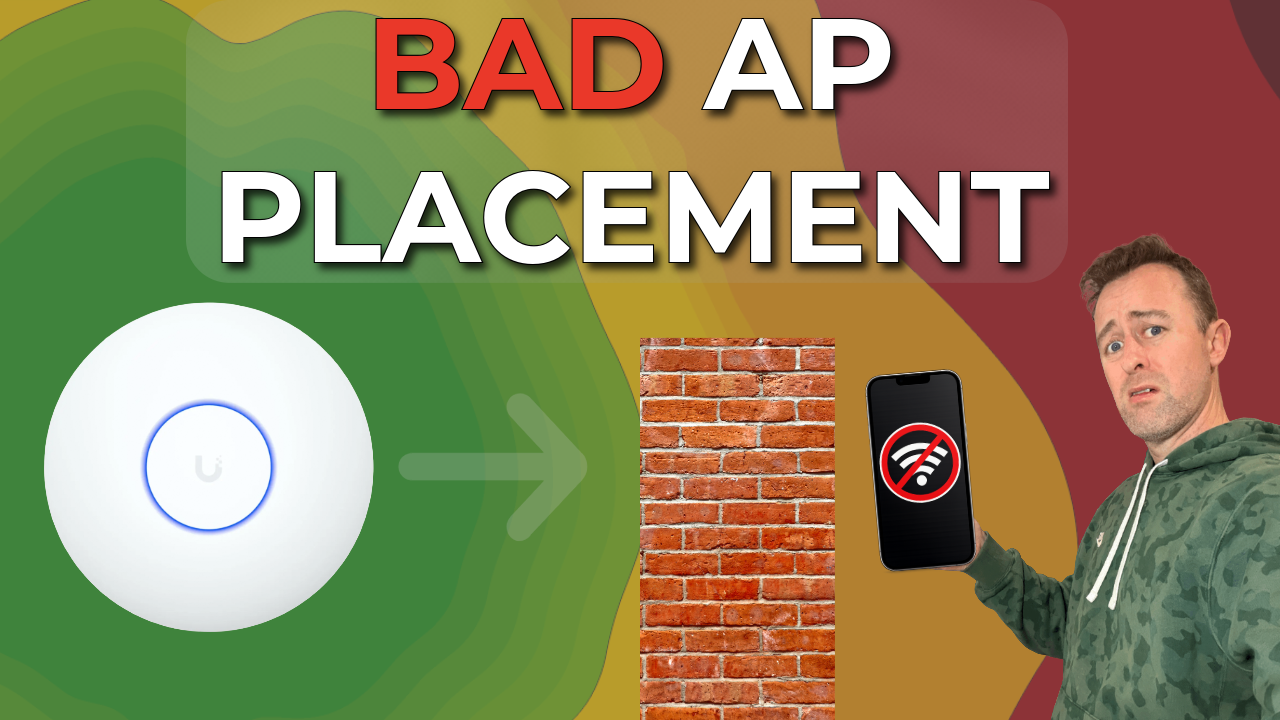
UniFi AP placement is one of the most important — and most misunderstood — factors in achieving reliable Wi-Fi performance. Poor coverage, dead spots, and inconsistent speeds rarely stem from internet speed or faulty hardware. In most cases, the problem comes down to where the access point is installed.
Ideally, we’d run network cabling wherever we want and place APs in perfect spots. But in reality, most homes or small businesses have to work around existing cables, finished walls, and all sorts of building materials — and that’s totally normal.
The good news is that a basic understanding of how Wi-Fi behaves makes a big difference. Once you know how building materials affect signal and how UniFi access points radiate coverage, you can achieve excellent results without ripping open walls or adding unnecessary hardware.
In this guide, we’ll walk through how to approach UniFi access point placement, common mistakes we see on real installations, and how to design WiFi coverage that works with your building rather than against it.
Jump to the Relevant Section
Who Is This Guide For — and How Do We Know?
This guide is based on real-world experience rather than theory alone.
We install UniFi access points in homes and businesses on a daily basis, working across a wide range of building types, layouts, and environments. With over eight years of hands-on experience and thousands of access points deployed, we’ve seen first-hand what works, what doesn’t, and what consistently causes problems.
Much of this guidance comes from diagnosing and fixing real Wi-Fi issues. In many cases, the hardware worked perfectly well, but poor placement, building materials, or layout held it back.
If you’d like to see real installations and examples of UniFi equipment in use, you can also check out our work on Instagram at @home.network.solutions.
UniFi AP Placement and Cabling Constraints
When thinking about UniFi AP placement, cabling is often the biggest limiting factor — and in many homes around the world, there is little or no structured network cabling in place.
Some properties may have Ethernet runs installed, but many rely entirely on WiFi from a single router location. In these cases, achieving ideal access point placement usually requires running new network cables, which can range from straightforward to very difficult depending on the building, construction methods, and access to ceilings or wall cavities.
Professional installers routinely route Ethernet through ceilings, voids, and walls using the right tools and techniques to work cleanly and safely. DIY installations often present more challenges, especially in finished buildings or where access is limited.
That said, professional installation isn’t always essential. Many users successfully install their own cabling, especially during renovations or when surface routes are acceptable. The key is understanding what’s realistic for your environment and planning access point locations accordingly.
If you’re weighing up the two main in-wall options available right now, I’ve put together a full comparison of the UniFi U7 In-Wall vs U7 Pro Wall covering specs, passthrough ports and real-world speed tests.

UUsing existing cabling is perfectly acceptable, but you should always check the category of cable in use. Manufacturers usually print this information along the cable sheath.
- Cat5 is now obsolete and best avoided for new installations
- Cat5e comfortably supports Gigabit Ethernet and often handles 2.5 Gbps reliably
- Cat6 suits higher-performance installs and supports 10 Gbps over shorter distances (typically up to 30–40 m)
- Cat6A and above support full-length 10 Gbps runs
When you understand your cabling options, making sensible UniFi AP placement decisions becomes much easier. It also helps you avoid over-engineering and unnecessary upgrades.
Planning UniFi AP Placement Before You Install
Before fixing anything to the ceiling or running new cables, it’s worth spending some time planning your UniFi AP placement.
Ideally, we’d be able to run network cabling anywhere we want and mount access points in perfect locations. In reality, most homes and small businesses have to work around existing cabling, finished walls, insulation, and building materials — and that’s completely normal.
Using the UniFi Design Center for Wi-Fi Planning
Ubiquiti provides a free planning tool called the UniFi Design Center, which is extremely useful for visualising Wi-Fi coverage before you install any hardware.
By importing or drawing a floor plan, you can place access points, select different models, and get a rough idea of expected signal strength across the building.
(UniFi Design Center visualising how different wall materials affect Wi-Fi signal strength and access point coverage.)

Modelling Wall Materials and Signal Loss
One of the biggest strengths of the UniFi Design Center is its ability to apply common building materials to walls and partitions. This makes it particularly useful for estimating how Wi-Fi may behave in real environments.
Used properly, the tool can help you:
- Estimate how many access points you may need
- Identify obvious coverage gaps
- Compare different access point models
- Make more informed decisions before committing to cabling or mounting locations
Understanding the Limits of Planning Tools
While the UniFi Design Center now includes basic 3D visualisation, you should treat it as a planning and estimation tool rather than a perfect real-world simulation.
(Example of UniFi AP placement using two access points to achieve even Wi-Fi coverage across the floor plan.)
It can model many common materials and provide a useful indication of coverage, but it cannot fully account for factors such as floor separation, ceiling voids, varying wall construction, furniture, or every source of signal absorption and reflection found in real buildings. Some materials are also simplified or not represented at all, which can significantly affect Wi-Fi performance once deployed.

Planning vs Real-World Wi-Fi Performance
For this reason, use planning tools as guidance rather than guarantees. They help set expectations and avoid major design mistakes, but they cannot predict every obstacle or signal loss you’ll encounter after installation.
This is why understanding how Wi-Fi behaves after it leaves the access point — and how different materials influence signal strength and reliability — is critical to achieving consistent real-world coverage. We’ll explore those materials in more detail later in this guide.

U7 Lite
- WiFi 7
- Dual Band
- 2.5Gb Ethernet


U7 Pro
- WiFi 7
- Tri Band
- 2.5Gb Ethernet


U6+
- WiFi 6
- Dual Band
- 1Gb Ethernet
UniFi AP Placement and How WiFi Signal Behaves
To understand good UniFi AP placement, it helps to first understand what happens to WiFi signal once it leaves the access point.
Wi-Fi does not travel in straight lines or intelligently navigate around obstacles. UniFi access points radiate signal in an omnidirectional pattern, which means the antenna sends energy in all directions.
With ceiling-mounted access points, the signal is strongest below the device and then spreads outward. It does not project forward like a narrow beam.
Once the signal leaves the access point, it enters an uncontrolled environment. From that moment on, physics determines its strength and reliability. Materials along the path can absorb, reflect, scatter, or block the signal.
This behaviour makes UniFi AP placement critical. Two installations using identical hardware can perform very differently based solely on where the access point is mounted and what sits between it and the client devices.
It’s also why WiFi coverage rarely matches diagrams perfectly. Real buildings contain layers of materials, objects, and structural features that interact with radio waves in ways that are difficult to predict precisely. Even small changes in position or mounting height can have a noticeable effect on coverage.
Understanding that WiFi is omnidirectional — and that it becomes subject to physics immediately after leaving the access point — provides the foundation for making sensible UniFi AP placement decisions. In the next section, we’ll look at the specific materials and construction features that have the biggest impact on WiFi performance, including some that often catch people out.
UniFi AP Placement: What Really Stops WiFi Signal
When discussing poor WiFi performance, interference is often cited as the primary cause. While interference can play a role, in real-world installations it is far more common for physical barriers to be the dominant problem — and these aren’t always obvious.
From a UniFi AP placement perspective, what sits between the access point and your devices matters just as much as where the access point itself is mounted.

The obvious barriers
Most people are aware that WiFi struggles to pass through dense materials such as:
- Brick walls
- Concrete floors
- Solid masonry
One particularly problematic construction type is double-skinned cavity walls, which can significantly degrade signal strength due to multiple layers of dense material and air gaps. Even a short distance through these walls can result in a dramatic drop in usable signal.
The less obvious — but often worse — blockers
What catches many people out is how badly WiFi performs around certain materials that aren’t immediately associated with signal loss.
Metal of any kind is especially bad news for WiFi, and this includes:
- Foil-backed insulation
- Foil-backed plasterboard
- Structural steelwork and support beams
- Large mirrors
- Metal appliances such as fridges
These materials don’t just weaken signal — they can reflect or completely block it, creating unpredictable dead spots that don’t show up clearly in planning tools.

One of the biggest WiFi killers: electric underfloor heating
Electric underfloor heating is a particularly effective WiFi blocker. Large conductive loops embedded beneath floors can severely attenuate signal passing between levels, often explaining why WiFi performs well upstairs but poorly downstairs — or vice versa — even when access points appear well placed.
Water and dense utilities
Water is another strong absorber of WiFi signal. Large objects such as:
- Hot water tanks
- Cold water storage tanks
- Boilers
can all reduce signal strength more than expected, especially when they sit directly between an access point and frequently used areas.
Outdoor WiFi and UV glass
Outdoor Wi-Fi issues often come down to overlooked physical materials. Modern buildings frequently use UV-reflective or solar-control glass, which blocks specific parts of the electromagnetic spectrum.
Unfortunately, WiFi operates in a similar range, meaning this type of glass can dramatically reduce signal passing from indoors to outdoors.
This often explains why WiFi appears strong inside but drops off sharply just outside doors or windows, even at short distances.
Why this matters for placement
Understanding how these materials affect signal is critical when deciding where to mount access points. Many Wi-Fi problems that people blame on interference or hardware limitations actually result from the building absorbing, reflecting, or blocking the signal.
In the next section, we’ll look at how to design coverage and distribution around these limitations — deciding when to add access points, where overlap helps, and how to avoid creating new problems by simply adding more hardware.

Materials That Have Little Impact on WiFi
While it’s important to understand what blocks WiFi, it’s just as useful to know what doesn’t significantly affect signal. In many cases, people assume WiFi loss where there is very little — or none at all.
From a UniFi AP placement perspective, the following materials generally have minimal impact on signal strength:
- Timber and wood-based construction
- Standard plasterboard (drywall)
- Stud walls and dry-lined partitions
WiFi will normally pass through stud walls with little noticeable loss, even across multiple rooms. The same generally applies to ceilings constructed with timber joists and plasterboard, which is why ceiling-mounted access points work so well in most residential and light commercial environments.
Mounting access points inside wooden joinery or cupboards also typically has little to no measurable impact on performance, provided there is no metal lining or foil-backed insulation involved. In many cases, Wi-Fi behaves almost the same whether you mount the access point in open view or conceal it inside timber cabinetry.
Standard glass is another material that has very little effect on WiFi signal. Unlike UV-reflective or solar-control glass, ordinary glazing allows WiFi to pass through with minimal attenuation.
When unexpected materials catch you out
Occasionally, buildings contain materials that aren’t obvious at all. One example we encountered was an older stately home where WiFi performance was inexplicably poor in certain areas. Investigation revealed a layer of approximately two inches of sand within internal structures, likely installed decades earlier for soundproofing.
Despite appearing benign, this dense material absorbed WiFi signal extremely effectively and completely changed how coverage behaved across the building.
This point matters because modern construction materials do not cause every Wi-Fi issue. Older buildings, renovations, and historical modifications can introduce unexpected barriers that planning tools and assumptions won’t reveal.
UniFi AP Placement: One Access Point vs Many
One of the most common assumptions we hear when discussing UniFi AP placement is that a single “powerful” access point is better than deploying multiple smaller ones. In practice, this is almost always incorrect.
Higher-end access points are not designed to magically cover larger areas. Their primary advantage is their ability to handle more simultaneous clients, higher aggregate throughput, and more complex environments — not to punch WiFi through walls or floors.

WiFi is a two-way conversation
A critical concept that’s often overlooked is that WiFi communication is bidirectional.
Even if an access point could transmit at very high power, client devices such as phones, tablets, and laptops transmit at much lower power levels. If a device can’t reliably send data back to the access point, the connection will still be poor — regardless of how “powerful” the access point appears on paper.
This means that simply upgrading to a larger or more expensive access point rarely improves coverage in difficult areas.

U7 In-wall
- WiFi 7
- Dual Band
- 2.5Gb Ethernet

U7 Pro wall
- WiFi 7
- Tri Band
- 2.5Gb Ethernet

U6 In-Wall
- WiFi 6
- Dual Band
- 1Gb Ethernet
Power is limited by regulation and physics
In much of the world, WiFi transmission power is regulated. Access points are legally limited in how much power they can output, regardless of size or price. On top of this, physics still applies — walls, floors, and dense materials will absorb or reflect signal no matter how capable the hardware is.
As a result, there is a hard ceiling on how far a single access point can realistically cover indoors.
Distribution beats raw power
Rather than trying to make one access point do everything, it is far more effective to distribute access points evenlythroughout the building.
Spreading access points:
- Reduces the number of walls each signal has to pass through
- Improves signal strength at the client device
- Provides more consistent performance across the property
From a planning perspective, it is usually better to invest in multiple well-placed access points than a single high-end model.

How we think about placement: horizontal coverage
When planning UniFi AP placement, we tend to think of buildings in columns rather than stacks.
Solid walls — particularly brick, concrete, and cavity walls — have a far greater impact on WiFi than ceilings in most buildings. For this reason, coverage is often best improved by distributing access points horizontally across a floor, rather than stacking them vertically on different levels and expecting signal to penetrate laterally.
In practical terms, this means:
- Placing access points to get past walls, not just above or below rooms
- Accepting some vertical overlap through ceilings
- Prioritising coverage across rooms and zones on the same level
This approach typically results in fewer dead spots, better roaming, and more predictable performance.
UniFi AP Placement: Ceiling-Mounted vs In-Wall Access Points
When deciding on UniFi AP placement, one of the most common questions is whether a ceiling-mounted or in-wall access point is the better option. While both have their place, they are not interchangeable — and in most scenarios, ceiling-mounted access points are the better choice.

Why ceiling-mounted access points are usually best
UniFi ceiling-mounted access points radiate signal downwards and outwards, which makes them ideal for covering rooms and open areas evenly. When you mount them centrally and at height, they take advantage of how Wi-Fi naturally propagates and avoid obstruction from furniture, appliances, or people.
In most installations, ceiling-mounted access points:
- Provide more even coverage
- Reach multiple rooms more effectively
- Are easier to plan and predict
- Perform better in multi-room environments
For new installations or where cabling can be run to the ceiling, this is almost always the preferred approach.
When in-wall access points make sense
In-wall access points do have valid use cases, but they are more specialised.
The first is retrofit installations, where an existing Ethernet wall socket is already in place and running new cabling to the ceiling is impractical. In these cases, replacing a standard wall outlet with an in-wall access point can be a neat and effective solution.
The second is when you specifically need pass-through wired connectivity. Many in-wall UniFi access points provide additional Ethernet ports, allowing you to connect devices such as TVs, desks, or phones while also providing local WiFi coverage.
The limitations of in-wall access points
Because in-wall access points are mounted lower and radiate signal primarily forwards, their coverage pattern is inherently more directional. This makes them better suited to individual rooms or defined areas rather than whole-floor coverage.
They are also more affected by:
- Furniture placement
- Metal objects within walls
- Appliances at signal height
For these reasons, using in-wall access points as a primary coverage solution often leads to inconsistent performance unless they are deployed in higher numbers.

The general rule
As a rule of thumb for UniFi AP placement:
- Use ceiling-mounted access points wherever possible
- Use in-wall access points when retrofitting or when wired pass-through ports are required
Choosing the right mounting type makes coverage easier to predict, easier to expand, and far more reliable in the long term.
Conclusion: Getting UniFi AP Placement Right
Good WiFi performance rarely comes down to buying more expensive hardware. In almost every case, it comes down to thoughtful UniFi AP placement and an understanding of how WiFi behaves in real buildings.
Access points don’t intelligently steer signal around obstacles, and they don’t gain magical range by being more powerful. Once WiFi leaves the access point, it is governed by physics, building materials, and the environment it passes through. Walls, metal, water, insulation, and even older construction methods can all have a far greater impact on coverage than interference or raw transmission power.
Using planning tools such as the UniFi Design Center is an excellent starting point, especially when combined with realistic expectations about their limitations. Planning works best when it’s supported by an understanding of materials, signal behaviour, and how access points are designed to radiate coverage.
In most cases, distributing multiple access points evenly across a property will deliver far better results than relying on a single high-end model. Ceiling-mounted access points provide the most predictable and consistent coverage, while in-wall units are best reserved for retrofit situations or where wired pass-through ports are required.
Ultimately, the goal of UniFi AP placement isn’t perfection — it’s reliable, consistent WiFi that works with the building you have. By focusing on placement first and optimisation second, you can avoid unnecessary upgrades, reduce dead spots, and build a network that performs well in the real world.
Author: Huw Jones – Home Network Solutions Berkshire
Huw is a UniFi specialist and the owner of Home Network Solutions Berkshire, providing professional networking, CCTV, gate automation and smart home installations across the UK. With years of hands-on experience and a growing YouTube audience at @home.network.solutions, Huw creates practical, no-nonsense guides to help homeowners and installers get the best out of their UniFi systems.
Leave a Reply