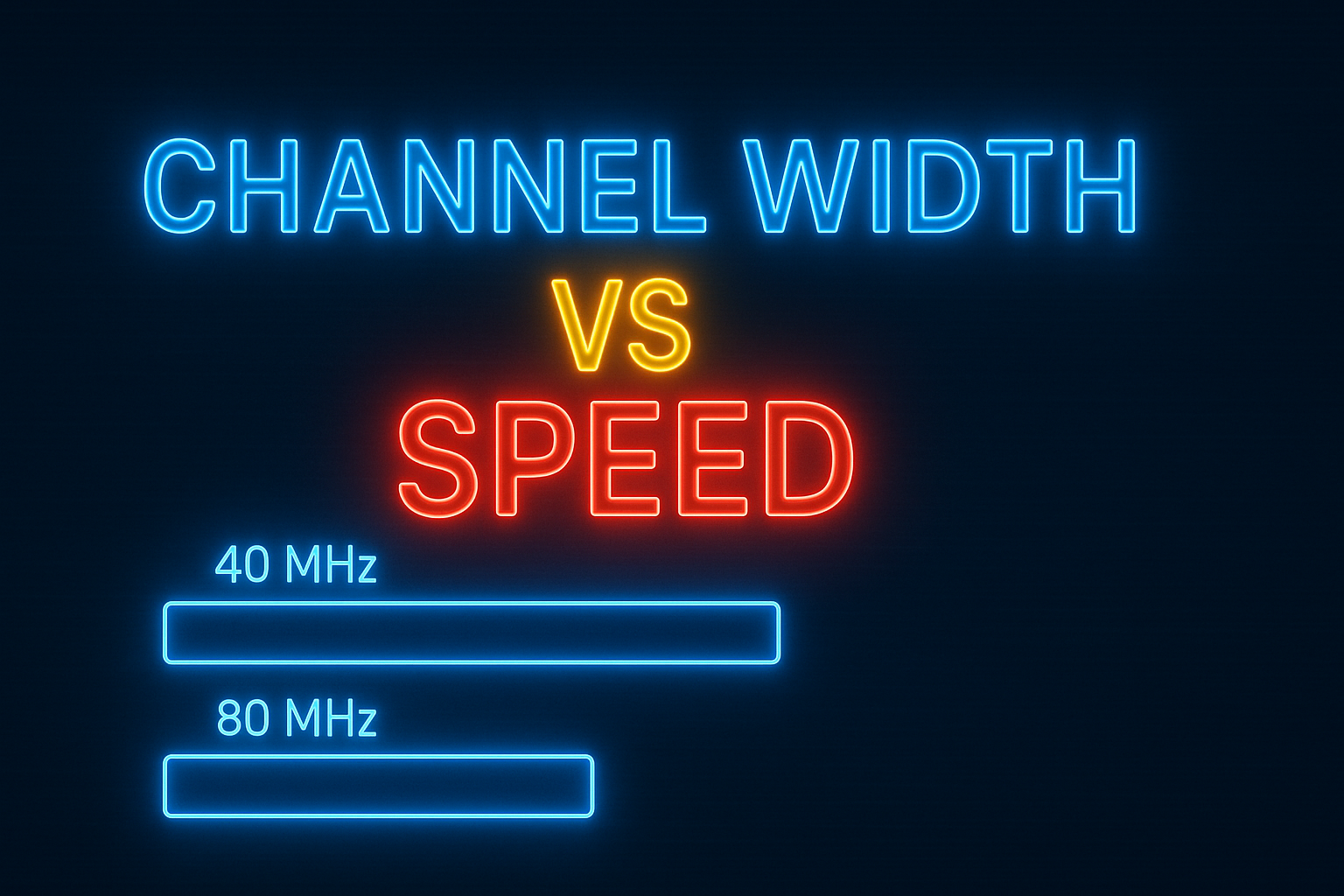
Why Increasing 5 GHz Channel Width Can Dramatically Improve Performance
If your WiFi speeds feel lower than expected — even on modern phones and laptops — there’s a single UniFi settingthat often makes an immediate, measurable difference.
No new hardware.
No rewiring.
Just one simple change.
The Quick Fix: Increase 5 GHz Channel Width
Many UniFi networks still run the 5 GHz band at 40 MHz channel width by default. While this is safe and conservative, it limits how much data your access point can transmit at once.
Increasing the channel width to 80 MHz — and in some environments 160 MHz — allows higher data rates, particularly on modern client devices.
Think of it like widening a road: more lanes allow more traffic to flow at the same time.
Test Setup vs Real-World Experience (Important Context)
The speed figures shown in this article and in the video were measured during a desk-based test, using:
- A UniFi U6+ access point
- A single client device
- No other network or hardware changes
- Only the 5 GHz channel width adjusted
That setup makes the results easy to reproduce and isolates the effect of channel width alone.
However, it’s worth being clear:
While the displayed results are from a desk test, the same behaviour has been observed repeatedly across hundreds of real-world installations.
In homes and small business environments with clean 5 GHz spectrum, increasing channel width consistently improves achievable throughput in exactly the same way.
The embedded video goes into more detail on this and shows the full test process step by step.
Measured Speed Difference
With no other changes made, speeds increased from:
- Before: 349 Mbps
- After: 610 Mbps
That improvement came purely from allowing the access point to use more available spectrum on the 5 GHz band.
Why We Leave 2.4 GHz Alone
| Band | Reality | Recommendation |
|---|---|---|
| 2.4 GHz | Only ~3 usable channels → very high overlap risk | ❌ Leave at 20 MHz |
| 5 GHz | Many more channels available | ✔ Increase width |
The core problem with 2.4 GHz isn’t just “lots of devices” — it’s maths.
There are effectively only three non-overlapping 2.4 GHz channels. That means:
- Neighbouring networks are almost guaranteed to overlap
- Widening channels dramatically increases interference
- Performance and reliability suffer very quickly
This is why widening channels on 2.4 GHz almost always makes things worse, not better.
80 MHz vs 160 MHz on 5 GHz — What Actually Makes Sense?
Older advice often treats 160 MHz on 5 GHz as something to avoid entirely. On modern UniFi hardware, that blanket rule no longer reflects reality.
80 MHz: The Sensible Default
- Works well in almost all homes
- Supported by virtually all modern clients
- Excellent balance of speed and stability
160 MHz: Situational, But Valid
On clean RF environments, 160 MHz on 5 GHz can work very well, including on access points like the U6+.
Key points:
- UniFi access points actively scan their RF environment
- Wider channels trigger channel-availability checks
- Congested spectrum is avoided automatically
160 MHz isn’t “wrong” — it’s simply more environment-dependent than 80 MHz, which is why 80 MHz remains the safest general recommendation.

UniFi’s Speed vs Stability Controls
Recent UniFi software updates introduced a much clearer way to manage this trade-off.
You can now choose whether your WiFi is optimised for:
- Maximum Speed
Wider channels where spectrum allows, higher throughput - Conservative / Stability
Narrower channels, reduced interference risk
Selecting Maximum Speed allows UniFi to dynamically manage channel widths instead of relying on static assumptions.
This is a meaningful change from older UniFi behaviour and makes wider channels far safer to use.

Where Wi-Fi 7 Fits In
Wi-Fi 7 introduces even wider channels — particularly on the 6 GHz band — but the same rule applies:
Wider channels only help when spectrum is available.
We cover this in detail, including speed testing and channel behaviour, in our Unifi Unifi U7 Lite – Wi-Fi 7 deep dive:
👉 Ubiquiti UniFi U7 Lite Review — Real Speed Tests & Wi-Fi 7 Explained
https://knowledgehub.hns-berks.co.uk/2025/12/13/ubiquiti-unifi-u7-lite-review-real-speed-tests-setup-wi-fi-7-explained/
How to Change Channel Width in UniFi
Automatic (Recommended)
- Settings → WiFi → Performance
- Select Maximum Speed
- Apply to all access points
Manual (Per Access Point)
- Devices → Select AP → Settings → Radios
- Set 5 GHz Channel Width → 80 MHz or 160 MHz
Manual control is useful for testing or targeted tuning.
Conclusion
Increasing your 5 GHz channel width is one of the simplest and most effective UniFi performance tweaks available.
- The test results shown are desk-based (see YouTube video)
- The behaviour is proven across real installations
- No hardware changes are required
Start with 80 MHz, test 160 MHz where spectrum allows, and let UniFi’s modern RF management do the rest.
Author: Huw Jones – Home Network Solutions Berkshire
Huw is a UniFi specialist and the owner of Home Network Solutions Berkshire, providing professional networking, CCTV, gate automation and smart home installations across the UK. With years of hands-on experience and a growing YouTube audience at @home.network.solutions, Huw creates practical, no-nonsense guides to help homeowners and installers get the best out of their UniFi systems.
Leave a Reply